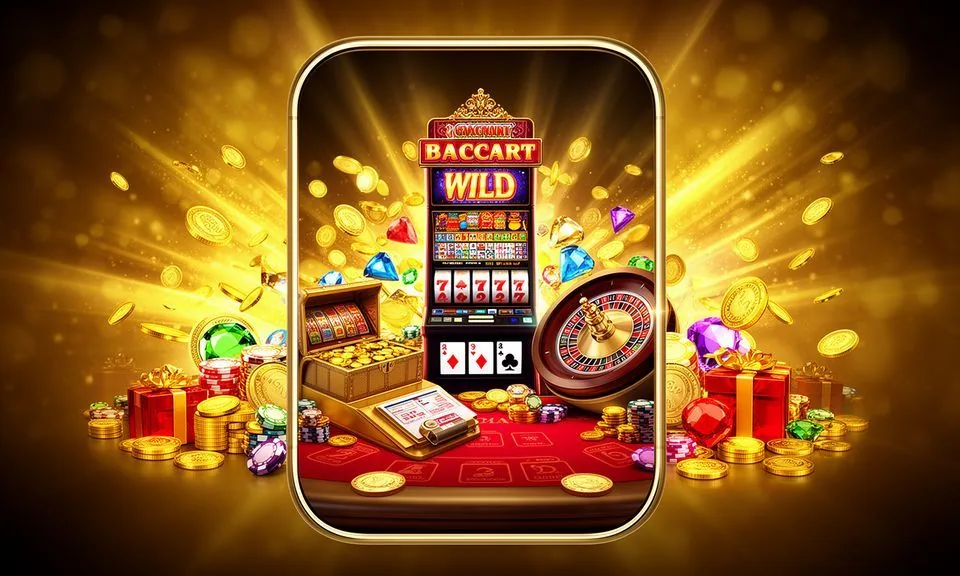
The tv1971 lobby opens in your mobile browser — live dealer tables, slot rooms and your account wallet all scale to fit your screen without a separate install. Check the current domain for the most up-to-date device guidance and to confirm whether a dedicated app build is offered in your region.
When you open the tv1971 site on your phone, the navigation reorganises into a thumb-friendly layout. The game lobby — including Dealer 24x7 Live, Comilla Speed Crash and the slots section — renders fully without needing an installed application.
BROWSER FEATURE SNAPSHOT
Mobile Web Features Inside tv1971
The mobile browser version of tv1971 is built around the same lobby structure as the desktop view. These are the key rendered-page behaviours you can count on when accessing the site from your device.
Responsive Layout
The page layout adjusts automatically to your screen size. Navigation menus collapse into a compact bar and game cards resize so the lobby stays browsable without horizontal scrolling or pinch-to-zoom on standard phone screens.
Account Route Access
Your wallet, transaction history and profile settings open through the account icon in the top menu. The same sign-in route that works on desktop applies on mobile — no separate mobile login credential is needed.
Game Discovery Rail
Live tables, slots and the sportsbook category each have their own horizontal scroll rail on mobile. You can move from Dealer 24x7 Live to the slots section or check cricket markets without leaving the main lobby page.
Help Page Access
The support and FAQ sections load fully in the mobile browser. If you run into a page-loading issue or need account help, those routes remain accessible from the footer menu even when you are not signed in.
THREE ACCESS STEPS
Mobile Access in 3 Steps
Getting into the tv1971 lobby from your phone takes only a few steps in your browser. There is no mandatory file to download before you can sign in and browse — the site is designed to work from a standard mobile browser session.
Open the Current Site
Type the tv1971 domain into your mobile browser address bar or follow a saved bookmark. Confirm you are on the correct domain before entering your account details — the published address is the only source we update.
Check Browser Compatibility
The site works in standard Android and iOS browsers. If a page element does not load correctly, try clearing the browser cache or switching to a different browser already installed on your device before reaching out to support.
Sign In Securely
Use your registered email and password on the sign-in screen. After authentication, the full lobby — including live tables, slots and account settings — is available. Your Nagad or Rocket payment routes appear inside the wallet section once you are signed in.
Check for App Availability
Inside account settings, look for a device or download section. If a dedicated app build is published for your platform, the prompt and any associated instructions appear there. We do not list third-party app sources.
DEVICE COMPATIBILITY CHECK
Checking Device and Browser Support
Before you rely on mobile access regularly, it helps to confirm that your device setup meets the basic requirements the site renders against. These are the compatibility points worth checking rather than assuming.
Browser Access
The lobby is designed to render in mainstream mobile browsers. If your current browser version is noticeably old, updating it through your device's app store is the first step when pages do not display correctly.
Screen Layout
The responsive layout is tested for standard phone screen sizes. Tablet and larger-screen devices can access the site, though the desktop layout may display instead of the compact mobile version on wider screens.
Account Requirements
Mobile access uses the same account as desktop. You do not need a separate mobile account. Your registered email, password and any active payment method — including Nagad and Rocket — carry across without reconfiguration.
Currently Supported Devices
For the most accurate and current list of supported devices and OS versions, check the device guidance published inside your account settings or the help section. We update that page when support changes rather than listing static figures here.
Connection Stability
Live dealer tables like Dealer 24x7 Live stream video continuously. A stable mobile data or Wi-Fi connection is needed for those games. Slots and crash games such as Comilla Speed Crash are generally more tolerant of variable connection quality.
MOBILE HELP ROUTES
Getting Help When You Access on Mobile
If something does not work as expected when you are on your phone, the help routes published on the site are the place to start. We do not maintain a separate support path for mobile — the same channels cover all device types.
In-Site Help Section
The FAQ and help pages are reachable from the footer menu on any screen size. If a game fails to load or a payment step does not complete, the relevant help article is usually there. Look under account help or payment queries depending on the issue type.
Live Chat Support
The live chat widget is visible in the mobile browser layout once you are signed in. Use it to describe a specific issue — for example, a page that does not render or a wallet action that is not completing — and the support team will respond through the same window.
Account Recovery Route
If you cannot sign in on mobile, use the published password recovery link on the sign-in page. It follows the same steps as the desktop recovery flow. Do not use third-party reset tools or links sent from unverified sources.
ACCESS TRUST CHECKS
Staying Secure When You Access tv1971 on Mobile
Mobile access introduces a few specific security habits worth building from the start. These checks are straightforward and each one addresses a real risk that comes with using a browser-based account on a shared or personal device.
Verify the Current Domain
Always check the address bar before entering your credentials. The correct domain is the one published in your account confirmation email or the official brand communications. If the address looks different, do not proceed — go back and locate the verified link.
Review Published Device Guidance
The help section inside your account settings holds the current device and browser guidance we maintain. Reading that page directly means you are working from accurate information rather than a cached or outdated source external to the site.
Protect Your Account Credentials
Do not save your password in a shared browser or on a device that other people use regularly. If you switch devices, sign out from the previous session using the account menu before closing the browser tab.
Use the Published Recovery Path
If you lose access to your account on mobile, the recovery steps are on the sign-in page. The process asks you to verify via your registered email address. Follow only those steps — do not share account details with anyone offering to recover access on your behalf.
APP ACCESS QUESTIONS
Common Questions About the tv1971 App
These are the questions we hear most often from members trying to work out how the tv1971 mobile experience works and what to do when something is not loading correctly.
Does tv1971 have a dedicated mobile app I can download?
Whether a native app is currently available depends on your device type and region. Check the device or download section inside your account settings after signing in — that is where we publish current app availability and any associated instructions, rather than maintaining a static answer here.
Can I access the full tv1971 lobby from a mobile browser?
Yes. The lobby — including live dealer tables like Dealer 24x7 Live, slots, crash games and the sportsbook section — loads in a standard mobile browser. The responsive layout adjusts to your screen so you can browse and play without a separate app file installed.
Which browsers work best for tv1971 on mobile?
The site renders in mainstream mobile browsers on both Android and iOS. If a section is not loading correctly, clearing your browser cache or switching to a different browser already on your device usually resolves it. For the current list of supported browsers, check the help section in your account.
Can I use Nagad or Rocket to deposit from mobile?
Your configured payment methods — including Nagad and Rocket — appear in the wallet section once you are signed in on mobile. The deposit steps are the same as on desktop. Follow the fields and limits shown on screen rather than relying on figures from external sources.
Why is a live table like Dealer 24x7 Live not loading on my phone?
Live dealer games stream video continuously and need a stable connection. If Dealer 24x7 Live is not loading, check your mobile data or Wi-Fi signal first. If the connection is fine, try refreshing the page or clearing the browser cache, then contact live chat support if the issue continues.
Is my account the same on mobile and desktop?
Yes — your account, wallet balance, transaction history and payment methods like Nagad and Rocket are the same whether you access from a phone browser or a desktop. There is no separate mobile account; sign in with the same credentials you use on any other device.
 Sports / Casino